
 ezOutlet 5
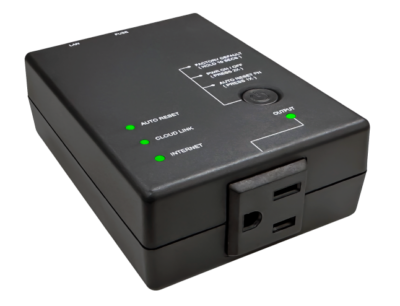



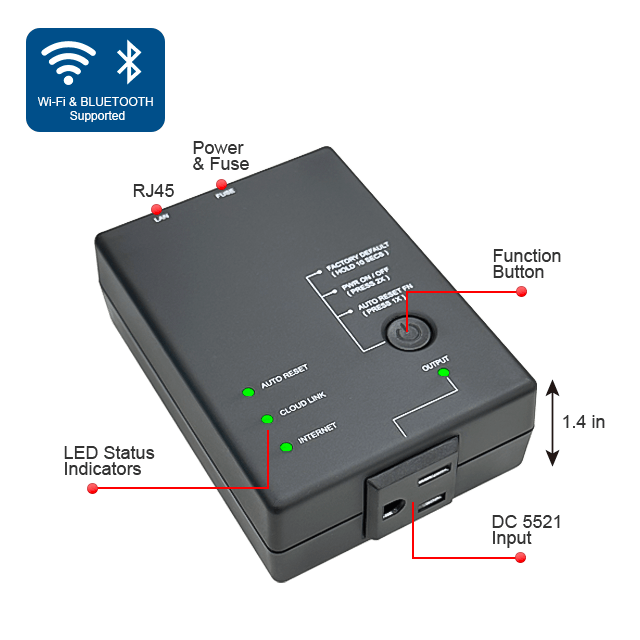
ezOutlet 5
The ezOutlet 5 is an autonomous power-reset device that comes built-in with Web interface, APP control and Cloud management functions. Its primary function is to detect and automatically execute a power-cycle when ping fails.
ezOutlet 5
with a built-in web interface, APP control and Cloud management functions.
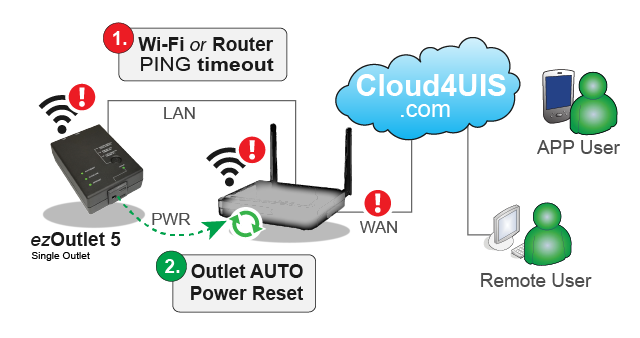
ezOutlet 5 is an autonomous power-reset device that comes built-in with Web interface, APP control and Cloud management functions. It’s primary function is to detect and automatically executes a power-cycle when either;
a) the internet connectivity is lost or,
b) the monitored network device is no longer responding.
ezOutlet 5 is designed to;
- Reduce internet downtime due to unresponsive network equipment.
- Watch-dog for network devices (eg. IP camera, Wi-Fi AP, switches, NAS or IoT devices).
- Remote control of outlets.
- Schedule power off-on-reset
ezOutlet 5 is a desirable tool for;
- Small office or home xDSL users.
- IT professionals or network managers.
- System integrators.
- Internet or VoIP service providers.
- Kiosks or ATM providers.
- Vending Machine or Commercial Digital displays.
ezOutlet 5 Basic Setup:
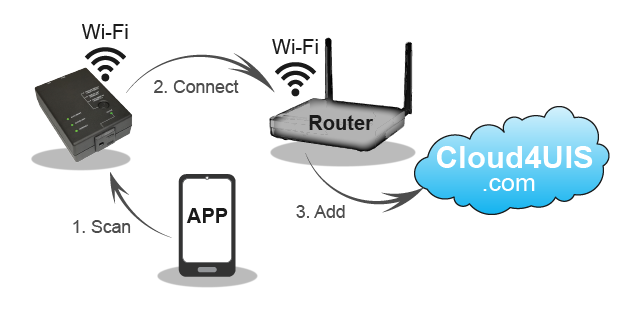
Cloud4UIS Management Platform
Manage and control ezOutlet 5 through Cloud4UIS.com or the ezDevice app.
- Install ezDevice APP and scan to locate device.
- Device connects to nearest Wi-Fi AP or is connected via Ethernet cable to router.
- Device auto pairs with user's Cloud4UIS account.
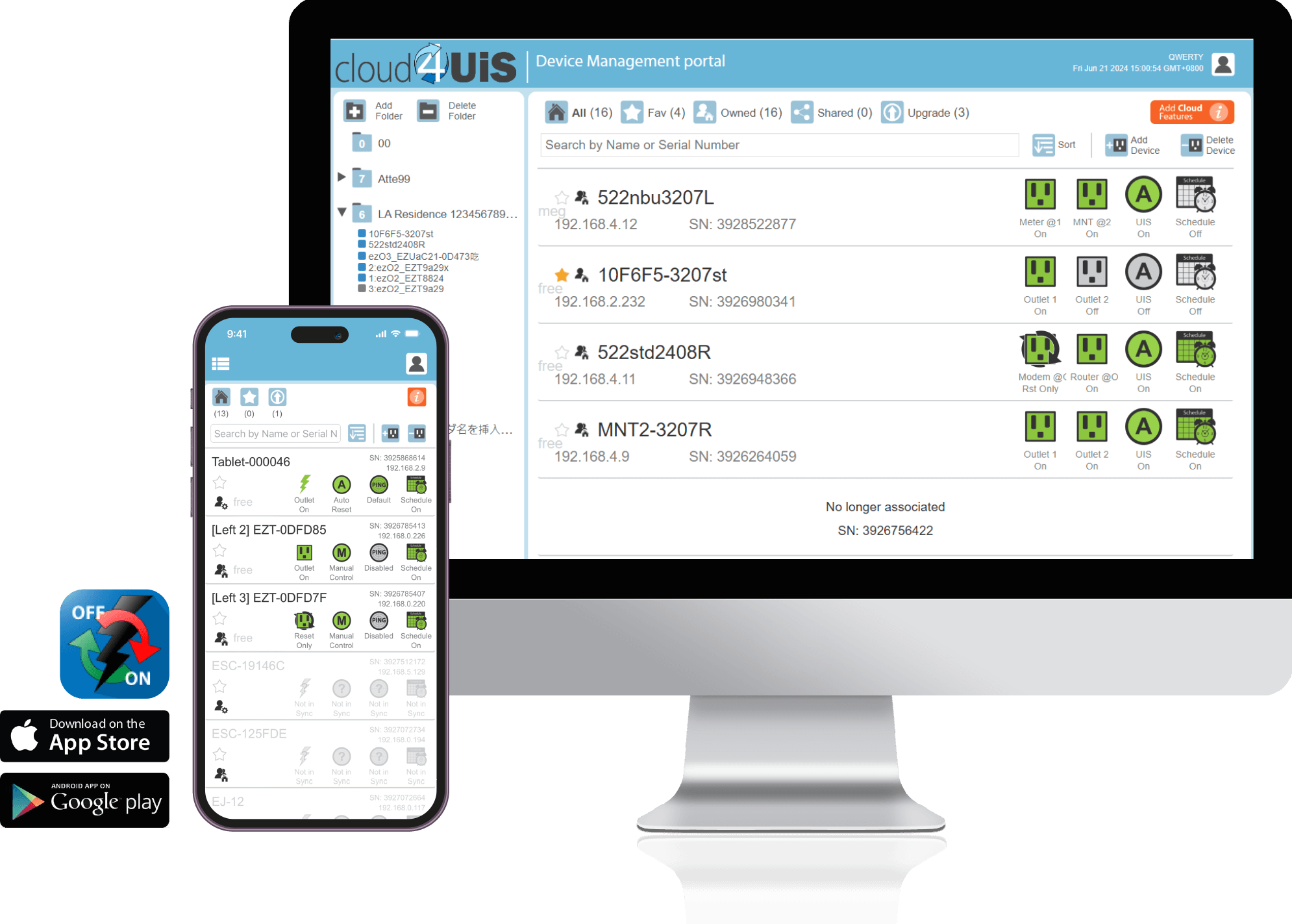
- Remotely Access and control devices
- Manage and monitor devices on a single platform
- Share device with other cloud users
- Assign access permission to shared user
- Designate Favorite to make unit easily available
- Stay updated with latest OTA firmware upgrades
- One-button protection – no internet setup required (for router monitoring). Simply press device’s ‘Function’ button once.
- Patented power restart method in response to network connection status.
- Support use of either Wi-Fi or Ethernet connection.
- Support multiple methods to remotely manage device – via either ezOutlet 5’s web interface, ezDevice APP, Cloud4UIS.com or API.
- Customizable settings for Auto Reset (“UIS”), outlet, target sites and network.
- Schedule either one-off or recurring Outlet power On / Off / Reset or Auto Reset (“UIS”) function On/Off by time, date or day.
- Save/Restore Configuration – allow user to save and easily transfer configuration to multiple devices.
- Support ezDevice APP (available on Android & iOS) and Cloud4UIS.com featuring:
· Intuitive remote management platform.
· Share Device ~ Allow other users access to control and management device.
· Assignable Shared Device user permission levels.
· Transfer device ownership to other users.
· Group Device for ease of management.
· Mark favorite unit for quick access.
· OTA device upgrade.
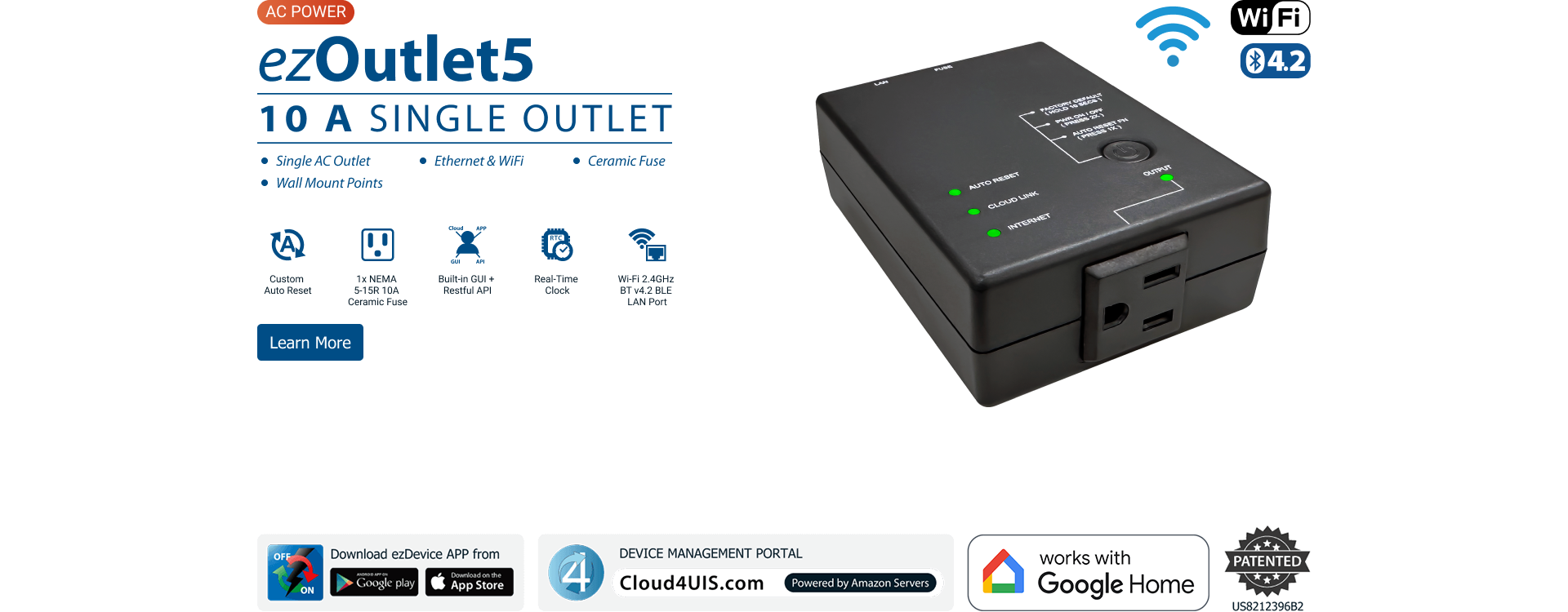

Ver.:5c15
| Product Name | ezOutlet 5(Auto Reset Power Outlet) |
| Model No. | EZ-72b |
| Diagram / Overview | |
| Socket type | 1x NEMA 5-15 Receptacle (Type B, Polarized) |
| Electrical Rating | AC 125V 50/60Hz 10A MAX 1250W |
| Fuse | 10A Ceramic Fuse |
| Control and management interface: |
|
| Network Access |
|
| Support | Android APP / iOS APP / Microsoft Edge / Chrome / Safari browser |
| Certification | FCC ID (USA), NCC (Taiwan), KCC (Korea), CE (Europe), CMIIT ID (China), ISED ID (Canada), MIC (Japan) |
| Operating Environment | 0°C ~ 50°C at 10% ~ 90% relative humidity. For indoor use only. |
| MODEL NO. | DOWNLOAD | ||||
|---|---|---|---|---|---|
| EZ-72b |
| PROGRAM NAME | VERSION | DATE | DOWNLOAD | FILE SIZE | NOTES |
|---|---|---|---|---|---|
| Netility for Windows | v5.2.1 | 18th Oct., 2024. | Netility for Windows V5.2.1.rar | 5.3MB | |
| Netility for MAC | v2.0 | 20th Oct., 2017. | Netility for MAC V2.0.rar | 976KB |
Notice:Firmware upgrades are undertaken at the user’s sole discretion and risk. Any damage caused by an improper upgrade procedure is not covered by manufacturer’s warranty.
Current Firmware Release Notes:
| Fixed |
|
| Fixed |
|
Firmware Upgrade Instructions: Upgrades this device Over-the-Air (OTA) via your Cloud4UIS.com account.
Upgrade Steps:
- Account Setup: Sign up for a Cloud4UIS.com account.
- Check Connectivity: Ensure your device has an active internet connection and the Cloud Link LED is blinking (else the next step will fail).
- Register Device: Log in to your account and select ‘Add Device’.
- Execute Upgrade: Once the device is added, navigate to the [Upgrade] folder and follow the on-screen prompts.
WARNING: DO NOT power-cycle or disconnect the device from the internet during the upgrade process
Support & Frequently Asked Questions
The following page is a compilation of frequently asked questions with regards to MSNswitch usage.
If you encounter a problem that is not listed in this FAQ, please email us. Be sure to include in your email:
- a) Model number
- b) Screen capture of “System Status” page
- c) Screen capture of the issue
Do you have any suggestions or “Wish List” for our product? We’d like to hear from you. Send us an email.
1. Ports required by ezOutlet to work:
- 10001 => [Add Device] function
- 10002 => [Add by Serial Number]
- 3000 (TCP) => Server communications
2. Test by connecting to a different cellular router (eg.: AT&T, etc).
Sprint is known to block many ports on their network. Contact Sprint to see if ports can be unblocked.
- Time router from Power On to Online.
- Set this time as [Ping Delay].
- Enable [Auto Reset]. Device must be online and then time-out to trigger [Auto Reset].
1. Change “Outlet Mode” from [Auto Reset] to [Manual Control].
2. Upgrade the router’s firmware.
3. Set ‘Outlet Mode’ back to [Auto Reset].
Per California’s ‘IoT Law’, device’s default credential is now:
- Default Login: admin
- Default Password: Last_6_MAC (See device label for MAC)
Note: The new default password will apply if the device is ‘Reset to Factory Default’. Else, the old login credential remains.
1. Check the following ports are not blocked by router or your ISP:
10001 => [Add Device] function, 10002 => [Add by Serial Number], 3000 (TCP) => Server communications
2. Check that “Cloud Link” LED is Off (unit not previously ‘Added’ / ‘Owned’). If it is already ‘Added’ (LED blinking / On), the device cannot be ‘Added’ again, until the unit is deleted from Cloud4UIS account or Reset to Factory Default.
3. Check the “Internet” LED is either On or Blinking. If Off, the device does not have an internet connection. Check LAN cable is secure and the LAN port LEDs are blinking rapidly.
4. Server may be busy, please try again after 5 minutes.
- Check that port 10002 is not blocked by the router or your ISP.
- Be sure to unplug and replug the LAN cable to enter ‘Add Mode’ (3 LEDs blink sequence) before proceeding.
- Server may be busy, please try again after 5 minutes.
- Check router DHCP table for the device’s LAN IP.
- Browse to said LAN IP.
- Enter login credential shown on device label.